


Save every Kling video with its prompt, model and settings
Updated
Every video and image you make on Kling lands in your own library with the prompt, the model and the settings that made it. Find the clip you need by a word you remember, not by scrolling.
Why Kling work is hard to keep track of
Kling is where a lot of image-to-video work happens: a still from Midjourney or ChatGPT goes in, a five or ten second clip comes out, and you try again with a different prompt, model or camera move until one works. A single shot can easily take a dozen attempts. Kling shows all of them in its own creation history, newest first, mixed with every other project you have going.
That history is the only place the prompt lives. A downloaded MP4 is just a video file: the prompt, the model and the settings that made it do not travel with it. When a client asks for the same camera move on the next shot, or a second version in a different ratio, you are back to scrolling, or to guessing.
People ask this as “kling ai save video”, “kling ai history”, “kling ai prompt library” or “does kling ai save images”. Kling has also changed its app address over time: app.klingai.com now sends you to kling.ai, which is one more reason not to rely on remembering where something was.
And Kling is rarely the only tool. The starting frame came from somewhere else, the voice from somewhere else again, and the final edit happens outside all of them. The prompt that made the approved clip needs to sit next to the picture that started it.
How Dreamdrive solves it on Kling
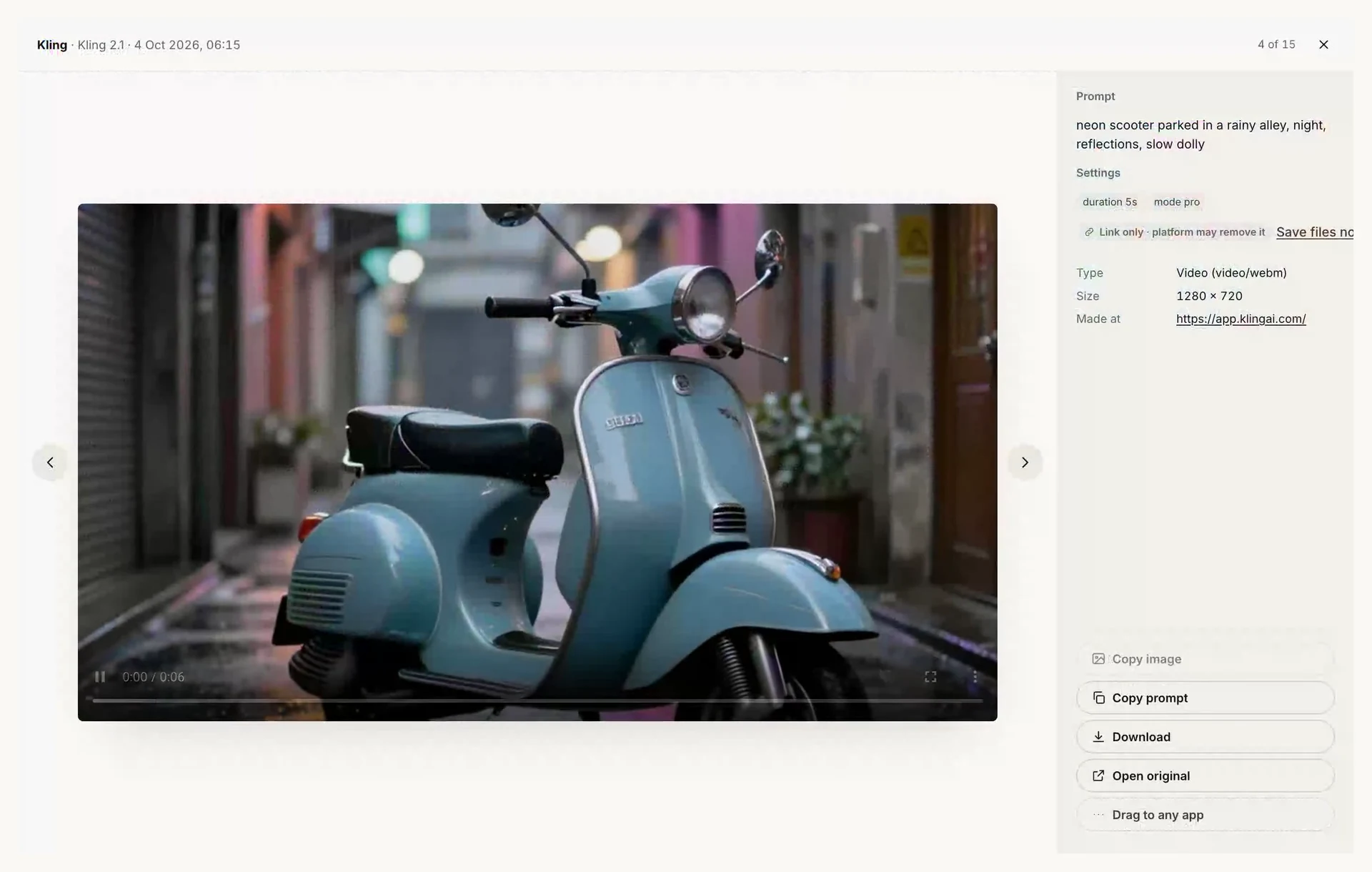
With Kling switched on, Dreamdrive reads your own work on kling.ai as it appears: each finished generation lands in the side panel with its prompt and settings, and the video itself is kept as a file. Dreamdrive reads Kling’s own data for your works, so the prompt is the one you actually wrote, not a title or a label from the page.
Only your own works are read. Kling’s home page, Explore and community pages are never saved, so other people’s showcase clips never end up in your library.
- Automatic saving of your own Kling videos and images as they finish.
- The prompt, the model and the settings Kling stores with the work (aspect ratio, mode, duration and the like).
- The video file itself, with a poster frame as its thumbnail, and images at their original size rather than the resized preview.
- The reference image you started from, when Kling shows it.
- If something is missed, point at it on kling.ai and press Save, or right-click and choose Save to Dreamdrive.
How to set it up
- Add Dreamdrive to ChromeInstall it from the Chrome Web Store and sign in with Google or an email code. Every account starts with 14 days of Pro, no card.
- Switch Kling onOpen the Dreamdrive side panel, find Kling in the Connect list and switch it on. Chrome asks whether Dreamdrive may read Kling: that permission covers Kling only, and Dreamdrive reads nothing on sites you have not switched on.
- Make something on kling.aiGenerate as usual. Each finished video or image appears in the side panel a moment later. Opening your creation history picks up recent works you made before switching Dreamdrive on.
- Choose where it goesPick a project (and a folder) under Saving to, for example the client the work is for. New captures land there; you can move anything later.
- Find it, reuse it, hand it overSearch by any word you remember from the prompt, copy the prompt, drag the picture into another tool, or share the project summary with a client.
What is saved from Kling
| Field | What Dreamdrive keeps |
|---|---|
| Prompt | The prompt you wrote, read from Kling’s own data for your work. |
| Model | The Kling model version the work ran on. |
| Settings | Aspect ratio, mode, duration, seed and similar settings Kling stores with that work. |
| References | The starting image of an image-to-video job, when Kling shows it. |
| Results | The video file (with a poster frame) or the image at its original size. |
| Time, project and notes | When it was made, the client project you chose, your notes and approval status. |
Every field is marked auto (read from the page), file (read from the file) or manual (typed by you), so you and your client can see how each one was obtained. Files are stored on Dreamdrive in the EU at the resolution Kling delivered them, up to 95 MB each: 2 GB on Free, 50 GB on Pro and the trial. You can also keep a full-size copy of every file on your computer.
Keep what is already in your Kling history
Works you open or scroll past in your own Kling history are picked up as they appear, so the quickest way to bring in recent work is to open your history with Dreamdrive switched on. Dreamdrive does not scroll for you; it reads what your own browser shows.
Video files you downloaded from Kling earlier can be imported too: drop them on Bring in older work. A downloaded MP4 does not carry its prompt, so add the prompt by hand when you remember it, and Dreamdrive marks that field manual.
Example: send the approved Kling clip’s prompt to another model
A client approves a Kling clip but wants a second take with a different look. Open the capture, press Copy prompt, and you have the exact text and settings that made the approved clip. Or press Use in… and choose Runway: Dreamdrive copies the prompt ready for Runway and notes the settings, such as the aspect ratio, to choose there.
Going the other way, drag a still from your Dreamdrive library (from Midjourney, Gemini or anywhere else) straight onto Kling’s image upload. Dreamdrive hands Kling the full-size file. When the video is done, it lands in the same project as the still. See Dreamdrive for Midjourney and Dreamdrive for Runway.
Tips for keeping Kling work tidy
- Keep one Dreamdrive project per client or per film, so every take of every shot lands together.
- Write the shot name into the note of the take you keep (“shot 04, final”). Search finds notes as well as prompts.
- Star the approved take. When a client asks for “the same move on shot 5”, Copy prompt on the starred one gives you exactly what made it.
- Drag the starting still from Dreamdrive, not from your Downloads folder, so the image-to-video pair is linked in the same project.
Organise Kling work by client
Captures go into the project you choose under Saving to, so Kling work for one client never mixes with another’s. Inside a project you can add folders (a round, a deliverable, a channel), star the ones that matter and add notes. Search covers every field at once: a word from the prompt, a model, a setting, a client or a note, across Kling and every other platform you use.
When a client approves a result, mark it approved; Dreamdrive records who approved it and when. On Pro, the one-page project summary lists the approved and delivered work per platform: the models used, the plan you declared, a link to the platform’s own terms, and for each result its prompt, settings and references. It prints, saves as a PDF, exports to CSV, and can be shared through a link you can turn off at any time. It lists facts and is not legal advice.
Your Kling work stays yours
Dreamdrive is read-only. Chrome asks your permission for each site you switch on, and nothing is read anywhere else. Captures are private to your account; nothing is shared unless you make a share link, which is unguessable, kept out of search engines and revocable. Files and records are stored in the European Union, and your prompts, clients and notes are used to run your library and for nothing else: not for training, not for marketing. You can download everything as a zip with a CSV and JSON of the details, or delete it, at any time.
What it costs
The Free plan costs nothing and shows the last 90 days of your work, with 3 projects and 2 GB of stored files. Pro adds the full history, unlimited client projects, 50 GB of stored files, the approval trail, project summaries and share links, for $9 a month or $79 a year. Every account starts with 14 days of Pro, no card. Saving on Kling, hover-save, right-click save, file import and downloads are on every plan. When a trial or subscription ends, nothing is deleted.
Honest limits
- Dreamdrive reads kling.ai in Chrome on your computer. Work made in Kling’s mobile app is saved when you open it on kling.ai in Chrome.
- Only what your own browser shows is read: Dreamdrive never scrolls, clicks or downloads on Kling for you.
- Kling changes its site from time to time. When it does, automatic saving can miss something until Dreamdrive is updated; hover-save and right-click save keep working.
- Large videos count towards your storage: 2 GB on Free, 50 GB on Pro, up to 95 MB per file.
Questions about Kling and Dreamdrive
Does Kling save my videos?
How do I save Kling videos with their prompts?
Can I find a Kling clip by its prompt?
Are Kling videos stored at full quality?
Does Dreamdrive save other people’s Kling videos?
If I delete something in Kling, is it deleted in Dreamdrive?
Does Dreamdrive use my Kling credits?
Is Dreamdrive part of Kling?
Learn Kling
Quickstart, settings and the most-asked questions in the Learning Centre: Kling.
- Kling Standard vs Professional Mode: Which to Use 5 min read
- Kling Prompting Guide: How to Write Prompts for Video 5 min read
- Kling Lip Sync and Motion Brush: How They Work 5 min read
- Kling 4.0 Guide: Omni Reference, Keyframes and 30s Clips 5 min read
- How to Extend a Kling Video: Auto and Custom Extend 5 min read
Have an image whose prompt you lost? The free Image to Prompt tool reads whatever prompt and settings the file still carries, in your browser.
Also works with
 Runway
 Higgsfield
 Google Flow
 Luma Dream Machine
 Pika
 Hailuo
 Vidu
 WanAll platforms →
Sources
- Kling AI: the web app Dreamdrive reads (app.klingai.com redirects here, checked 15 October 2026)
- Kling AI Terms of Service: the terms that apply to what you make
Platform logos belong to their owners and are shown to say where Dreamdrive works. Dreamdrive is independent and not endorsed by any of them.
Free plan, 14 days of Pro to try, no card.