


Save Artlist AI images and videos with their prompts and settings
Updated
Every image and video you make in the Artlist AI Toolkit lands in your own library with its prompt, model and settings, next to your stock footage notes and your other AI tools.
Why Artlist AI generations are easy to lose track of
Artlist’s AI Toolkit puts several image and video models in one place, organised in sessions. New generations land in your session history, and clicking one opens its details: the prompt, the generation settings and any reference images, with options to download, favourite, add to an artboard or delete it (Artlist help: AI Toolkit, Using Apps).
That means the prompt is one click away inside Artlist, but not in the grid, and not in the file you download. Across several sessions and models, the version a client approved is quickly hard to pin down.
Searches like “artlist ai download” and “artlist ai prompts” come from the same place: keep the result and what made it together, somewhere you can search, with the rest of the project.
Artlist is also where many people already get music and footage for the same edit, so AI shots made there belong with the rest of the production. Keeping them in a separate folder of downloads, apart from the prompts and from shots made in other AI tools, is how a project gets messy.
How Dreamdrive solves it on Artlist AI
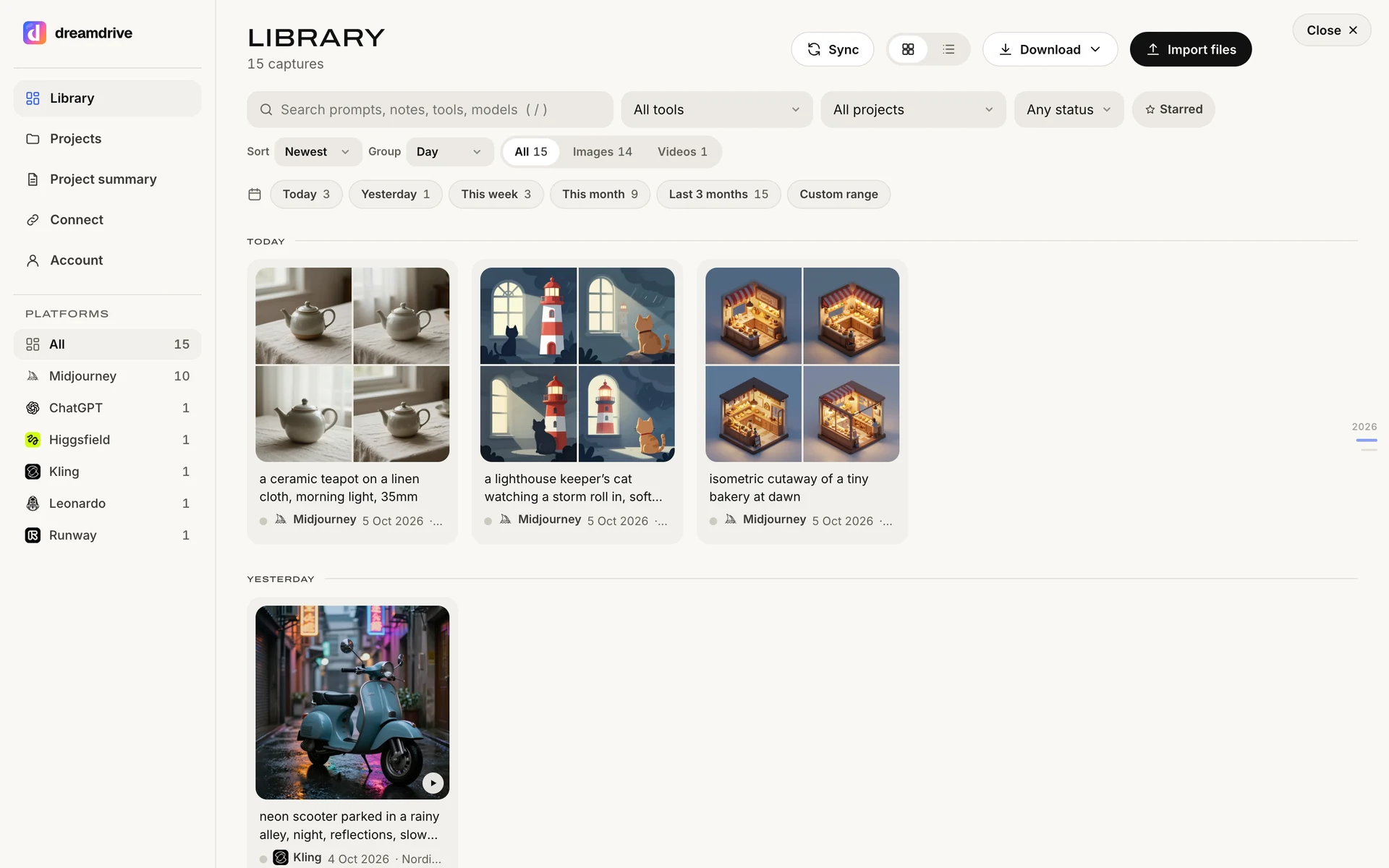
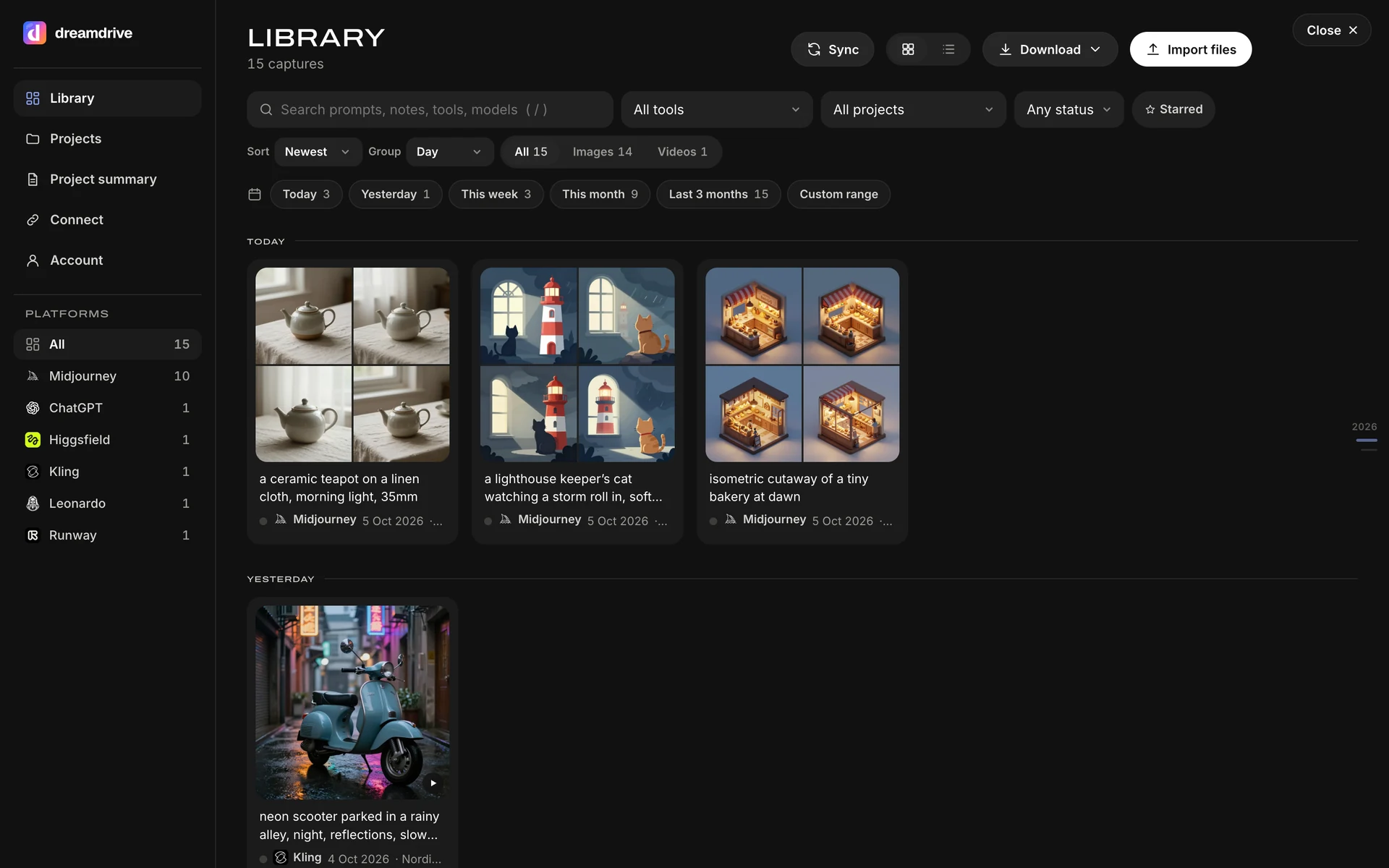
With Artlist switched on, Dreamdrive saves the images and videos you make in the AI Toolkit with their prompts. Artlist’s grid does not show the prompt, so Dreamdrive reads it from Artlist’s own data, and from the asset details when you open them. The model and settings come along when Artlist provides them. Dreamdrive never generates or submits anything, so it uses none of your credits.
- Automatic saving of your own Artlist AI images and videos.
- The prompt, plus the model and settings when Artlist provides them.
- The image or video file itself.
- If something is missed, open its details and it is picked up, or point at it and press Save.
How to set it up
- Add Dreamdrive to ChromeInstall it from the Chrome Web Store and sign in with Google or an email code. Every account starts with 14 days of Pro, no card.
- Switch Artlist AI onOpen the Dreamdrive side panel, find Artlist AI in the Connect list and switch it on. Chrome asks whether Dreamdrive may read Artlist AI: that permission covers Artlist AI only, and Dreamdrive reads nothing on sites you have not switched on.
- Generate in the Artlist AI ToolkitWork in a session as usual. New images and videos are saved as they appear; opening a generation’s details fills in anything the session view did not show.
- Choose where it goesPick a project (and a folder) under Saving to, for example the client the work is for. New captures land there; you can move anything later.
- Find it, reuse it, hand it overSearch by any word you remember from the prompt, copy the prompt, drag the picture into another tool, or share the project summary with a client.
What is saved from Artlist AI
| Field | What Dreamdrive keeps |
|---|---|
| Prompt | From Artlist’s own data or the generation’s details. |
| Model and settings | The model, aspect ratio and quality, when Artlist provides them for the generation. |
| Results | The image, or the video with a poster frame. |
| Time, project and notes | When it was made, the client project you chose, your notes and approval status. |
Every field is marked auto (read from the page), file (read from the file) or manual (typed by you), so you and your client can see how each one was obtained. Files are stored on Dreamdrive in the EU at the resolution Artlist AI delivered them, up to 95 MB each: 2 GB on Free, 50 GB on Pro and the trial. You can also keep a full-size copy of every file on your computer.
Keep what is already in your sessions
Generations that appear in your sessions with Dreamdrive switched on are picked up as you browse; opening a generation’s details makes sure its prompt and settings come along. Dreamdrive never opens or clicks anything for you.
Files you downloaded earlier can be imported: drop them onto Bring in older work and add prompts by hand where needed.
Example: Artlist AI shots and other tools in one project
A spot uses an Artlist AI video for one shot and a Kling clip for another. With both switched on, both land in the same Dreamdrive project, each with its prompt and model, ready for the editor and listed in the client’s project summary.
Drag any of them from your Dreamdrive library into your editor or another tool’s upload. See Dreamdrive for Kling and Dreamdrive for Runway.
Tips for keeping Artlist AI work tidy
- Use one Dreamdrive project per production, so Artlist AI shots and shots from other tools land together.
- Open a generation’s details once if its prompt is missing; Dreamdrive fills it in from there.
- Note the shot or scene name on the take you keep; notes are searchable.
- Mark the delivered version approved so it is the one the project summary lists.
Organise Artlist AI work by client
Captures go into the project you choose under Saving to, so Artlist AI work for one client never mixes with another’s. Inside a project you can add folders (a round, a deliverable, a channel), star the ones that matter and add notes. Search covers every field at once: a word from the prompt, a model, a setting, a client or a note, across Artlist AI and every other platform you use.
When a client approves a result, mark it approved; Dreamdrive records who approved it and when. On Pro, the one-page project summary lists the approved and delivered work per platform: the models used, the plan you declared, a link to the platform’s own terms, and for each result its prompt, settings and references. It prints, saves as a PDF, exports to CSV, and can be shared through a link you can turn off at any time. It lists facts and is not legal advice.
Your Artlist AI work stays yours
Dreamdrive is read-only. Chrome asks your permission for each site you switch on, and nothing is read anywhere else. Captures are private to your account; nothing is shared unless you make a share link, which is unguessable, kept out of search engines and revocable. Files and records are stored in the European Union, and your prompts, clients and notes are used to run your library and for nothing else: not for training, not for marketing. You can download everything as a zip with a CSV and JSON of the details, or delete it, at any time.
What it costs
The Free plan costs nothing and shows the last 90 days of your work, with 3 projects and 2 GB of stored files. Pro adds the full history, unlimited client projects, 50 GB of stored files, the approval trail, project summaries and share links, for $9 a month or $79 a year. Every account starts with 14 days of Pro, no card. Saving on Artlist AI, hover-save, right-click save, file import and downloads are on every plan. When a trial or subscription ends, nothing is deleted.
Honest limits
- Dreamdrive works with the Artlist AI Toolkit in Chrome on your computer, only your own generations. It does not save Artlist’s stock music, footage or sound effects.
- When the session view does not show a prompt, opening the generation’s details is what fills it in.
- If Artlist changes its site, automatic saving can miss something until Dreamdrive is updated; hover-save and right-click save keep working.
- Videos count towards storage: 2 GB on Free, 50 GB on Pro, up to 95 MB per file.
Questions about Artlist AI and Dreamdrive
Where does Artlist keep my AI generations?
How do I save Artlist AI videos with their prompts?
Does a downloaded Artlist AI file keep its prompt?
Does Dreamdrive save Artlist stock music or footage?
Can I search my Artlist AI work by prompt?
Is Dreamdrive part of Artlist?
Can I keep Artlist AI work next to my other AI tools?
What if Artlist changes how the toolkit looks?
Learn Artlist AI
Quickstart, settings and the most-asked questions in the Learning Centre: Artlist AI.
- Artlist AI Agent, Flows and Style Kit Explained 5 min read
- Artlist AI Video Generator: Models, Frames and Settings 5 min read
- Artlist AI Voiceover: Voices, Settings and Script Tips 5 min read
Have an image whose prompt you lost? The free Image to Prompt tool reads whatever prompt and settings the file still carries, in your browser.
Also works with
 Runway
 Higgsfield
 Google Flow
 Kling
 Luma Dream Machine
 Pika
 Hailuo
 ViduAll platforms →
Sources
- Artlist help: AI Toolkit, Using Apps: a generation’s details show the prompt, settings and references, with download, favourite and delete
- Artlist blog: How to use the Artlist AI Toolkit: new generations appear in your session history
- Artlist Terms of Use: the terms that apply to what you make
Platform logos belong to their owners and are shown to say where Dreamdrive works. Dreamdrive is independent and not endorsed by any of them.
Free plan, 14 days of Pro to try, no card.